Despite Windows 7 being out of support since January 2020 there are still people transitioning out of it and into Windows 10. If you’re still using Windows 7…please don’t. Seriously though, it’s a security issue at this stage. At the very least you should not use a Windows 7 computer for internet banking. When I say out of support, what I mean is that Microsoft is no longer releasing security updates, so every nefarious hacker and his dog will be looking for a way in, and Microsoft will not stop them with new security patches for the (no doubt numerous) holes.
We’re still migrating people to new Windows 10 computers, and of course, there are a few differences. So I thought I’d compile a little list of the very basic tips I like to give new Users.
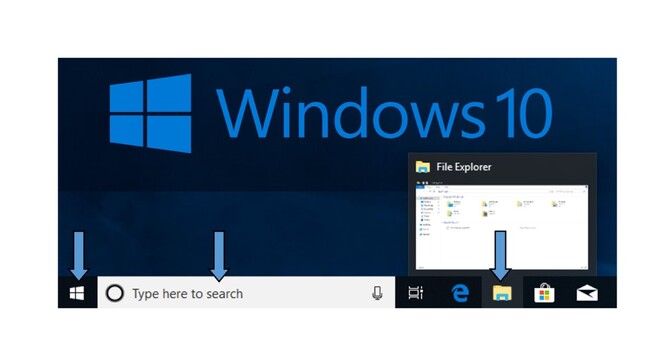
1 – To find your files and documents: look for the little yellow folder icon on the taskbar. This is File Explorer. Open it up and take a look; this is where all your files and documents are located. You should use Documents and Pictures to store your files. Avoid the trap of saving everything to the desktop.
2 – To locate your applications: you’ll find the programs in the start Menu. Click on the little Windows symbol in the very bottom left of your screen. They’re all there in alphabetical order. Any programs sitting on your desktop are just shortcuts. Or if you don’t want to scroll through them you can use the Search Bar (directly to the right of the Start Menu). Just type in what you’re looking for.
3 – To shut down properly: please don’t hold down the physical start button. This can damage your computer. If you click on the Start Menu again you’ll see a little power symbol directly above  , click on it and select Shut Down. When you click the little power symbol you will also see an option to Restart. We recommend a Restart once a week for the health of your computer, and as step one for troubleshooting if you think your computer is doing anything weird.